
Fitbit Texting Capability Checker
Select your device and phone operating system to see exactly what you can do with texts on your wrist.
Messaging Capabilities for
How to Enable Texts:
- Open the Fitbit App on your phone.
- Tap your profile icon (top left) > Select your Device.
- Scroll down and tap Notifications.
- Toggle on Text Messages (and WhatsApp/Messenger if needed).
- Important: Ensure your phone is not in Silent/Do Not Disturb mode, as this often blocks watch vibrations.
You’re in the middle of a meeting, your phone is buried deep in your bag, and you feel that familiar buzz on your wrist. Your heart skips a beat-not from exercise, but from curiosity. Who is it? Can you actually read the message? And more importantly, can you reply without pulling out your phone like some kind of digital hermit?
The short answer is: it depends entirely on which Fitbit model you own. Unlike the Apple Watch or Samsung Galaxy Watch, Fitbits have historically treated messaging as a secondary feature rather than a primary communication tool. For years, many users could only see notifications, not interact with them. But things have changed significantly with recent hardware updates and software improvements.
The Big Divide: Notifications vs. Replies
To understand what you can do, you need to distinguish between two very different capabilities. First, there’s viewing notifications. This means your watch lights up when you get a text, showing the sender’s name and a snippet of the message. Almost every modern Fitbit does this. Second, there’s replying. This allows you to send a response directly from your wrist using quick replies, voice-to-text, or even an on-screen keyboard. Very few Fitbits support true typing, and even fewer support voice dictation for texts.
If you bought a basic tracker expecting to type out "On my way!" like you would on an Apple Watch, you might be disappointed. If you just want to know if it’s urgent enough to pull out your phone, most current models will serve you well.
Which Fitbit Models Let You Reply to Texts?
Not all Fitbits are created equal when it comes to communication. The ability to reply is tied to specific hardware features-mostly microphones and larger touchscreens. Here is how the current lineup stacks up regarding text interaction.
| Model | View Notifications | Quick Replies | Voice Dictation | Full Keyboard |
|---|---|---|---|---|
| Fitbit Sense 2 | Yes | Yes (Android) | No (Call audio only) | No |
| Fitbit Versa 4 | Yes | Yes (Android) | No (Call audio only) | No |
| Fitbit Charge 6 | Yes | Limited (Android) | No | No |
| Fitbit Inspire 3 | Yes | No | No | No |
| Fitbit Luxe | Yes | No | No | No |
Notice the pattern? Android users generally have more flexibility here than iPhone users. This isn’t a bug in the Fitbit app; it’s a limitation imposed by iOS itself. Apple restricts third-party watches from sending arbitrary text messages via Bluetooth in the same way they allow their own devices. On Android, however, Fitbit can leverage the phone’s notification listener service to send back predefined responses or, in some cases, dictate text.
How to Set Up Texting on Your Fitbit
Having the right hardware is only half the battle. If your settings aren’t configured correctly, you’ll never see those messages pop up. Here’s how to ensure your Fitbit app is talking to your phone properly.
- Open the Fitbit App: Go to the "Today" tab and tap your profile picture or device icon at the top left.
- Select Your Device: Tap on the image of your specific Fitbit model.
- Navigate to Notifications: Look for the "Notifications" menu option. It’s usually near the bottom of the device settings list.
- Enable App Alerts: Toggle on the switch for "Text Messages." You may also want to enable WhatsApp, Messenger, or Slack if you use those frequently.
- Check Phone Permissions: On Android, ensure Fitbit has permission to access notifications. On iOS, go to Settings > Notifications > Fitbit and make sure alerts are allowed.
A common pitfall? Silent mode. If your phone is on silent or Do Not Disturb, your Fitbit often won’t vibrate for texts, even if the setting is enabled. Always check your phone’s sound status first if you’re missing notifications.
The Reality of Replying: What Can You Actually Say?
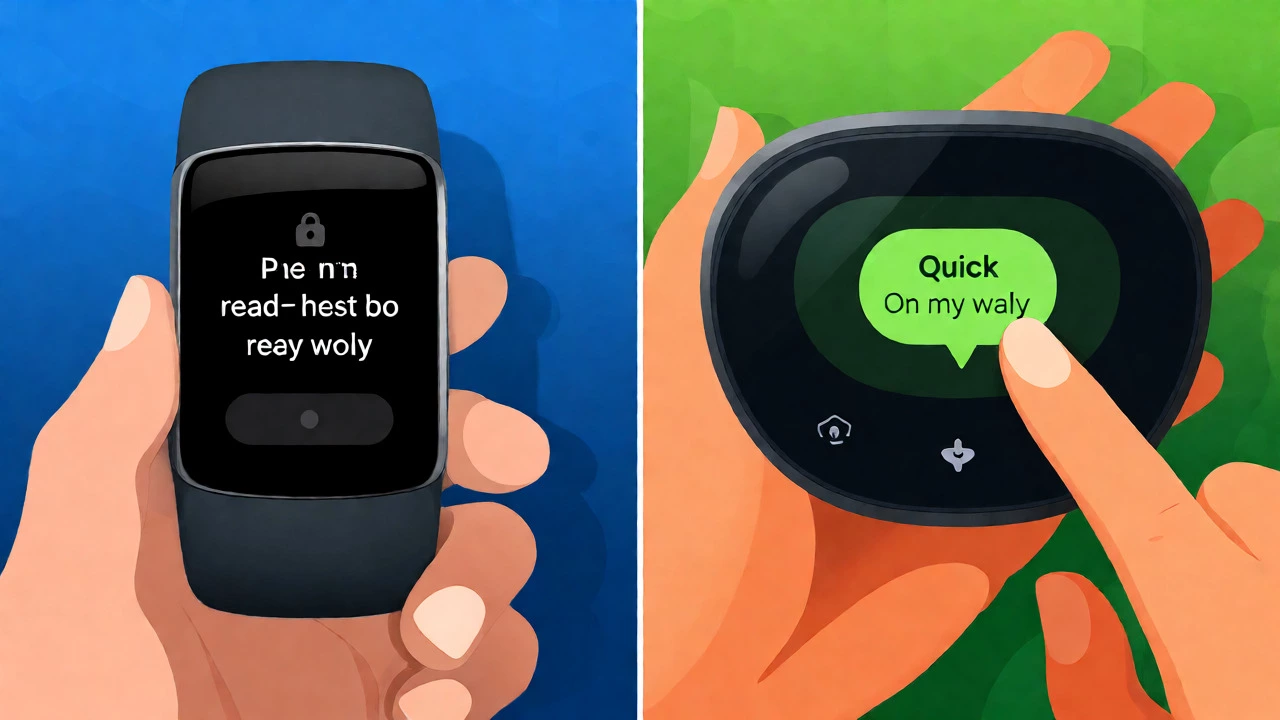
So, you’ve got the notification. Now you want to respond. This is where expectations meet reality. On most Fitbit devices, you cannot open a full QWERTY keyboard to type a novel. Instead, you rely on "Quick Replies." These are pre-set phrases like "OK," "Thanks," "On my way," or "Call me later."
For Android users with supported models like the Fitbit Versa 4, you can sometimes customize these quick replies within the Fitbit app under the notification settings. However, you still can’t type free-form text easily. Voice dictation for texts is notably absent on most current Fitbits. While the microphone works perfectly for answering calls, it doesn’t typically transcribe speech into text messages for apps like iMessage or SMS.
If you absolutely must send a custom text from your wrist, you might find yourself frustrated. In that case, the best strategy is often to use the notification as a triage tool. See who it is, gauge the urgency, and then decide if it’s worth reaching for your phone. This approach saves battery life and keeps you less distracted throughout the day.
Why Can’t I Text Like I Do on an Apple Watch?
This is the most common complaint among new Fitbit users transitioning from other ecosystems. The difference lies in integration depth. Apple designs its hardware and software together, allowing the Apple Watch to act almost like a standalone cellular device for messages. Fitbit, now owned by Google, operates differently.
Google’s strategy with Wear OS (which powers some newer smartwatches) differs from the classic Fitbit OS. Classic Fitbits are primarily health trackers that piggyback on smartphone connectivity. They aren’t designed to replace your phone’s communication layer. This design philosophy prioritizes battery life and health metrics over complex input methods. Typing on a tiny screen drains battery fast, so Fitbit limits input options to preserve the multi-day battery life that is their main selling point.
Troubleshooting Missing Text Notifications
If your Fitbit isn’t buzzing when you get a text, don’t assume it’s broken. Nine times out of ten, it’s a settings conflict. Here’s a quick checklist to fix it:
- Restart Both Devices: It sounds cliché, but restarting your phone and syncing your Fitbit clears temporary glitches in the Bluetooth connection.
- Disable Battery Saver: Aggressive battery saving modes on Android phones often kill background processes, including the one that pushes notifications to your watch.
- Check Focus Modes: If you have Work Mode or Sleep Mode active on your Fitbit, notifications might be suppressed. Swipe down on the watch face to check your current mode.
- Update Firmware: Ensure both the Fitbit app and your watch firmware are up to date. Bugs related to notification delivery are frequently patched in minor updates.
Alternatives If Texting Is a Dealbreaker
If being able to type full sentences from your wrist is non-negotiable for you, Fitbit might not be the right ecosystem. Consider looking at devices running Wear OS or watchOS. The Pixel Watch, for instance, offers robust messaging features similar to the Apple Watch, including voice transcription and emoji support. However, these devices often require daily charging, unlike the week-long battery life of many Fitbits.
Another option is the Garmin Venu series. Garmin has improved its messaging capabilities significantly in recent years, offering voice dictation for texts on select models. It’s a middle ground between the simplicity of Fitbit and the complexity of Apple/Samsung watches.
Frequently Asked Questions
Can I send a text message from any Fitbit?
No, you cannot send texts from all Fitbit models. Basic trackers like the Inspire series and older Charge models can only display notifications. You need a smartwatch-style device like the Sense or Versa series, and even then, sending capability is limited to quick replies and varies by operating system (Android vs. iOS).
Why can't I reply to texts on my iPhone with my Fitbit?
Apple restricts third-party accessories from sending text messages directly through the standard Bluetooth protocol used by Fitbit. As a result, iPhone users can view incoming text notifications on their Fitbit but generally cannot reply to them from the watch itself. This is an iOS limitation, not a defect in the Fitbit hardware.
Does the Fitbit Charge 6 support text replies?
The Fitbit Charge 6 supports viewing text notifications. For Android users, it offers limited quick reply functionality for certain apps. However, it does not support voice-to-text for messages or a full on-screen keyboard, making it less capable for communication than the Versa or Sense lines.
Can I read WhatsApp messages on my Fitbit?
Yes, you can read WhatsApp notifications on most modern Fitbits. You must enable WhatsApp alerts in the Fitbit app under Notification settings. Note that while you can read the preview, replying to WhatsApp messages from the watch is often restricted or unavailable depending on your phone's operating system.
Will getting a new Fitbit update improve texting features?
Software updates occasionally refine notification handling and fix bugs, but they rarely add major new input methods like a full keyboard or voice dictation to older hardware. If your current model lacks a microphone or sufficient processing power, a software update won't magically enable advanced texting features.